
Installation instructions
Basically, there is two ways to setup your Enemy Territory game.
I have listed both options here for Wolfenstein ET, in order to play on the Madchook Clan Server you will need to download the Vanilla ET installer and also download ETPub.
 Vanilla Enemy Territory 2.60b. Best option for competitive ETPro mod players, since ET Legacy is not compatible with ETPro. There is no widescreen support, but there is something you can do to fix this (see below under Installing Vanilla Wolfenstein ET).

ET Legacy is the modern replacement of Enemy Territory. Best option for non-ETPro players. Fully compatible with all mods (except ETPro) and 2.60b servers, and compatible with modern systems. Includes widescreen support, omnibots and various new features. The Madchook Clan is using the ET Legacy download, click here to jump straight to the instructions for ET Legacy.
Installing Vanilla Wolfenstein ET (ETPro and ETPub)

FIRST STEP:
Head to the Madchook downloads page or Splash Damage website and download Wolfenstein ET setup. This is the game play that the Madchook Clan uses.
Madchook website download path
Wolfenstein ET Madchook (Windows) [www.wolfet.com.au]
Wolfenstein ET Madchook (Mac OS) [www.wolfet.com.au]
Wolfenstein ET Madchook (Linux) [www.wolfet.com.au]
Alternative download path Splash Damage website
Wolfenstein ET (Windows) [www.splashdamage.com]
Wolfenstein ET (Mac OS) [www.splashdamage.com]
Wolfenstein ET (Linux) [www.splashdamage.com]
SECOND STEP:
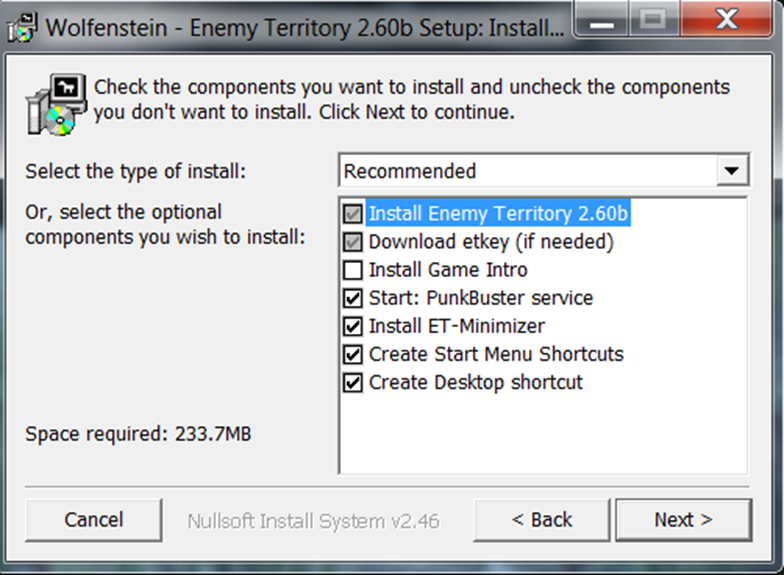
Proceed with the installation. Installation includes ET-Minimizer (to minimize the game) and Punkbuster anti-cheat. You can also install the game intro if you want to.
THIRD STEP:
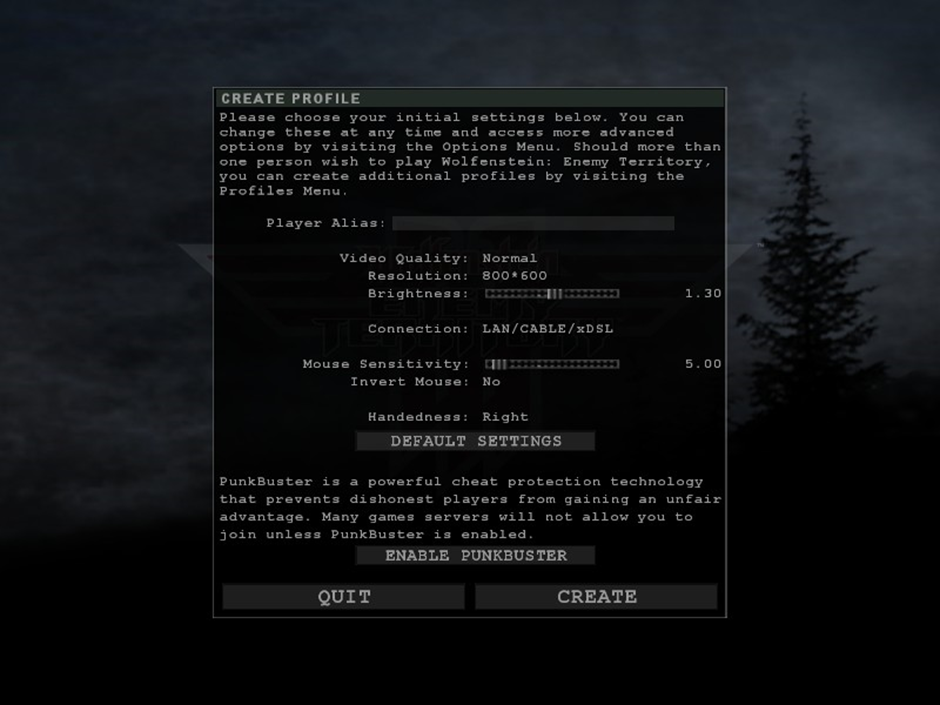
Setup your in-game profile.
Don’t forget to enable Punkbuster Anti-Cheat to be able to play on PB enabled servers(most of them are PB enabled).
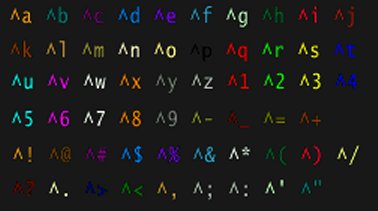
Note: You can also use different colors in your nickname. Just type ^1(1 is number of color) before any letters you want to colorize.
Example: Some players like to have colors in their name like: Sideshow Bob. To make your name look like this, you would say:
The “^1” means “Make all the letters after this look red”. The “^p” means “black”, and the “^2” means “green”. Here’s a complete listing of the color codes (you first bit of programing). The full command would look like this: set name “^1Side^pshow ^2Bob”
To hard? You if you want you can also use this color name generator[teammuppet.eu]
Another Note: If you still want to use widescreen in the vanilla ET do this:
After profile and graphics setup open the console with ~ button. Type this commands:
/r_mode -1
/r_customwidth 1920 (your custom width)
/r_customheight 1080 (your custom height)
/vid_restart
Also you might want to play with your FOV. Try different values.
/cg_fov 100
However weapons first person models will still look odd, since there is no native widescreen support in the game.
Your widescreen setup can reset if you change anything in the graphics menu. So setup everything there before widescreen commands.
FOURTH STEP:
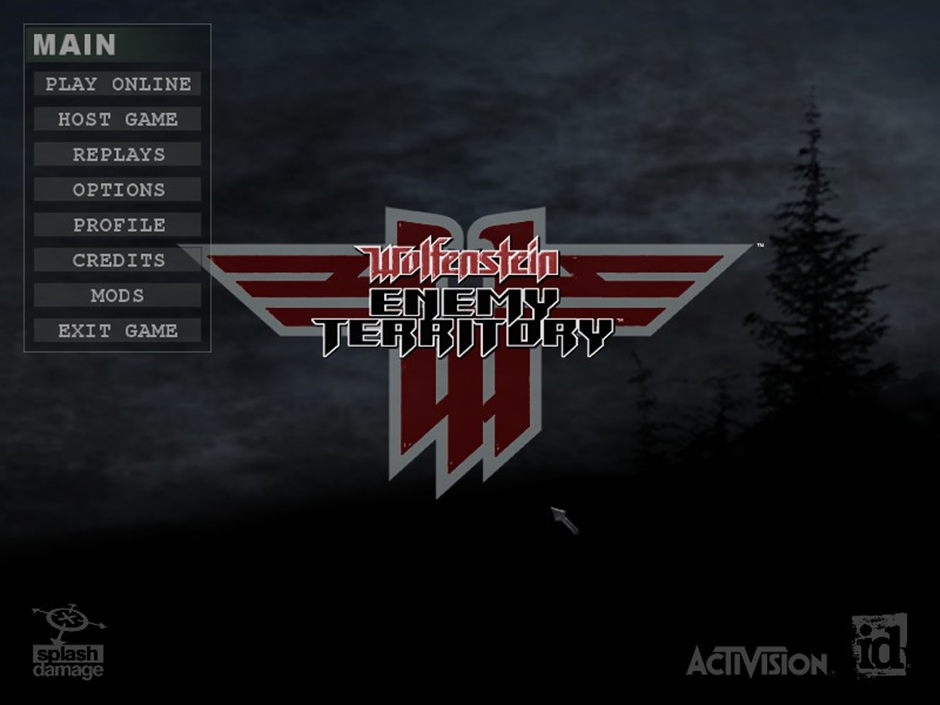
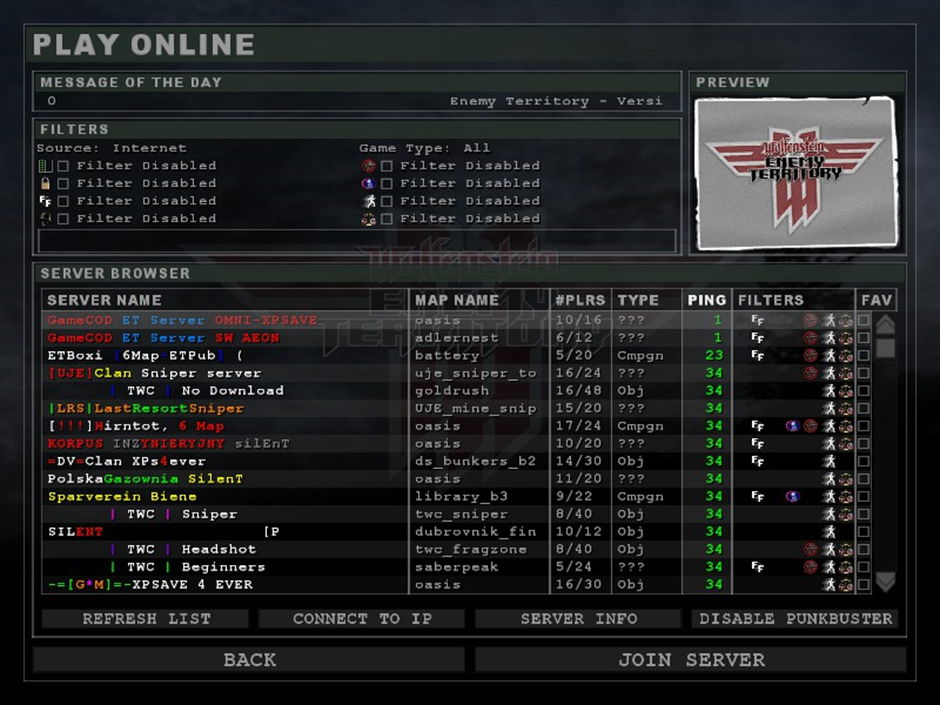
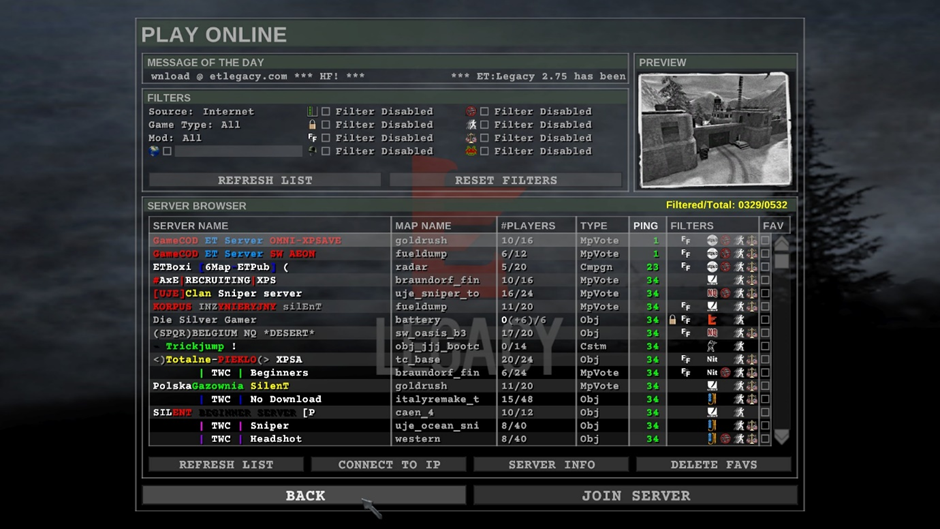
Getting into the game. Click on the PLAY ONLINE button in the main menu.
After that you will see a server browser list. You can select any servers from the list, and then click on JOIN SERVER button or alternative simply click the CONNECT TO IP if you know the IP address of the server.
Installing ET Legacy
FIRST STEP:
Grab your ET Legacy installation file from here, from either the Madchook Clan Server or alternatively the ET Legacy website.
Wolfenstein ET Legacy Madchook (Windows) [www.wolfet.com.au]
Wolfenstein ET Legacy Madchook (Mac OS) [www.wolfet.com.au]
Wolfenstein ET Legacy Madchook (Linux) [www.wolfet.com.au]
Alternative download path from the ET Legacy website.
ET Legacy [www.etlegacy.com]
SECOND STEP:
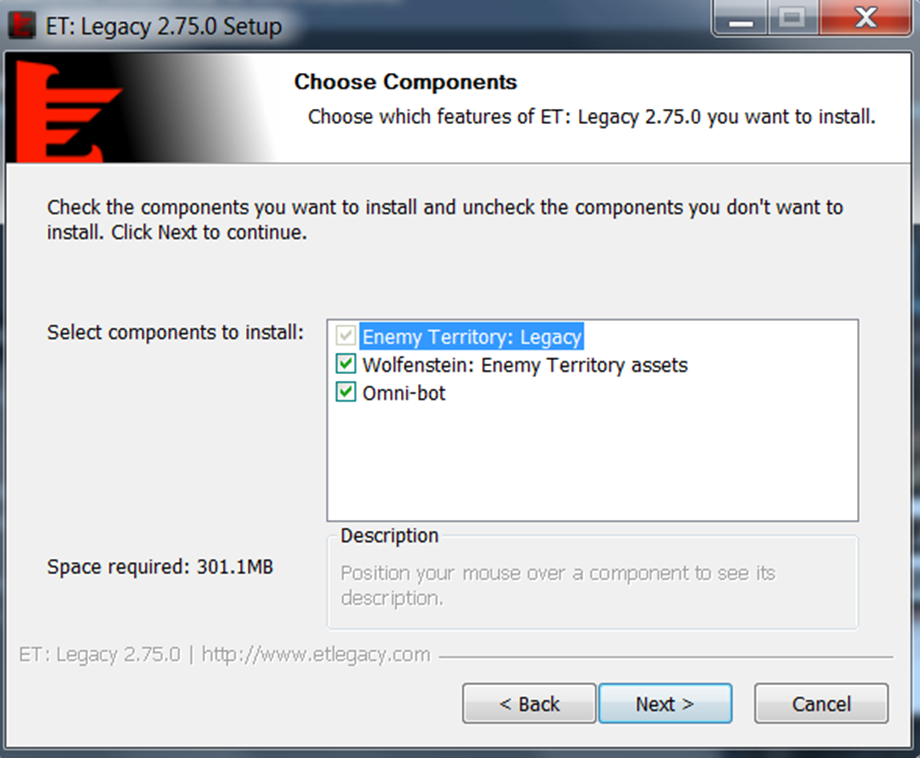
Proceed with the installation. Install Omnibot if you want to. Omnibot are bots that can play in the game. The Madchook server hosts Omnibot. If you don’t have original ET installed, install ET assets as well.
THIRD STEP:
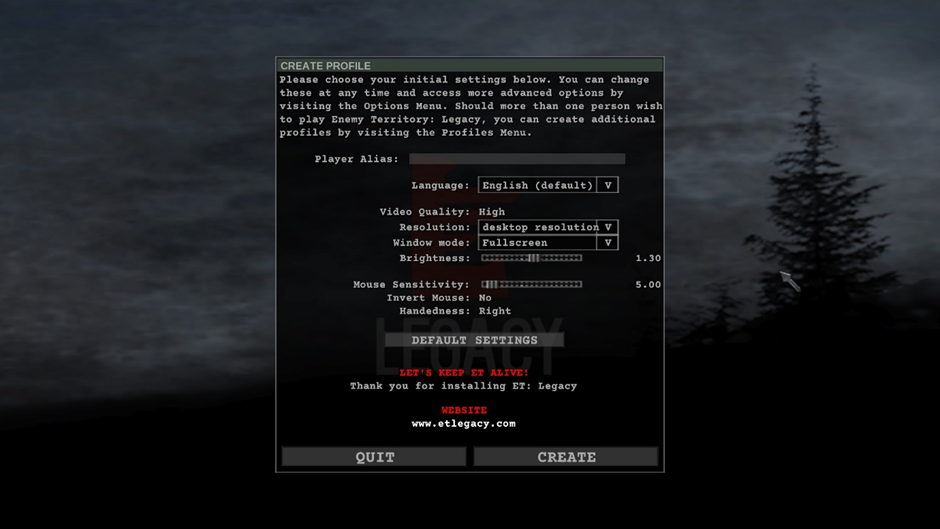
Setup your in-game profile. As you can see there is no Punkbuster Anti-Cheat option, since PB is not compatible with ET Legacy.
ET Legacy supports different widescreen resolutions so there is no need to setup widescreen manually like in Vanilla ET. Weapons first person models will look normal, since there is native widescreen support in ET Legacy.
Note: You can also use different colors in your nickname. Just type ^1(1 is number of color) before any letters you want to colorize.
Example: Some players like to have colors in their name like: Sideshow Bob. To make your name look like this, you would say:
The “^1” means “Make all the letters after this look red”. The “^p” means “black”, and the “^2” means “green”. Here’s a complete listing of the color codes (you first bit of programing). The full command would look like this:
set name “^1Side^pshow ^2Bob”
To hard? You if you want you can also use this color name generator[teammuppet.eu]
FOURTH STEP:
Getting into the game. Click on PLAY ONLINE button in the main menu.
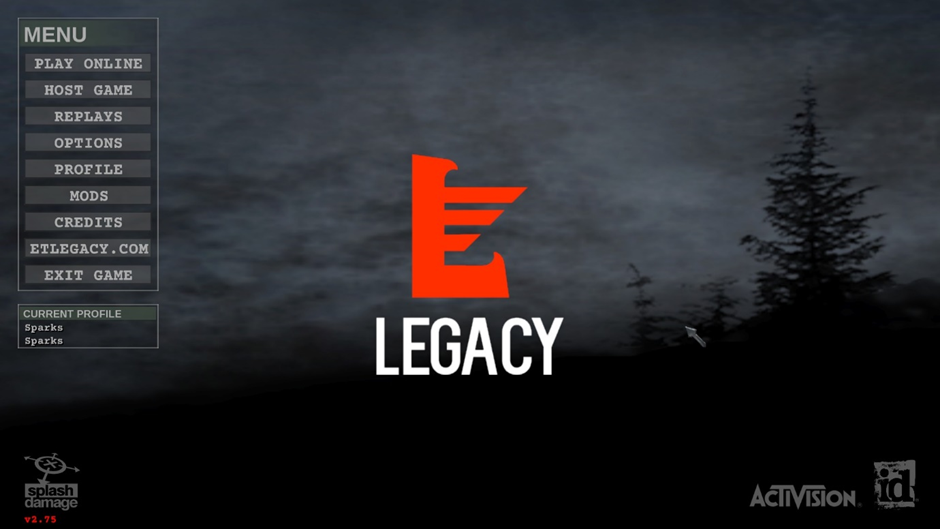
Use the in-game browser to find servers. ET Legacy has in-build mod filter, make most use of it to filter the games. Most of the alive servers are using ETPub, siLent, Jaymod and Noquarter mods. ET Legacy is compatible with all mods except ETPro.
After that you will see a server browser list. You can select any servers from the list, and then click on JOIN SERVER button. Alternative simply click the CONNECT TO IP button in the in-game browser and put your IP address there and you will get into game in no time. To join the Madchook server you can either find it in the server list as mentioned or enter the IP address manually. The IP address for the Madchook server is 202.91.202.91.
Also there is bot filter in the server browser.
OMNIBOT SETUP IN ET LEGACY:
If you want to play with bots click on the HOST GAME button in the main menu.
This will bring you to this screen.
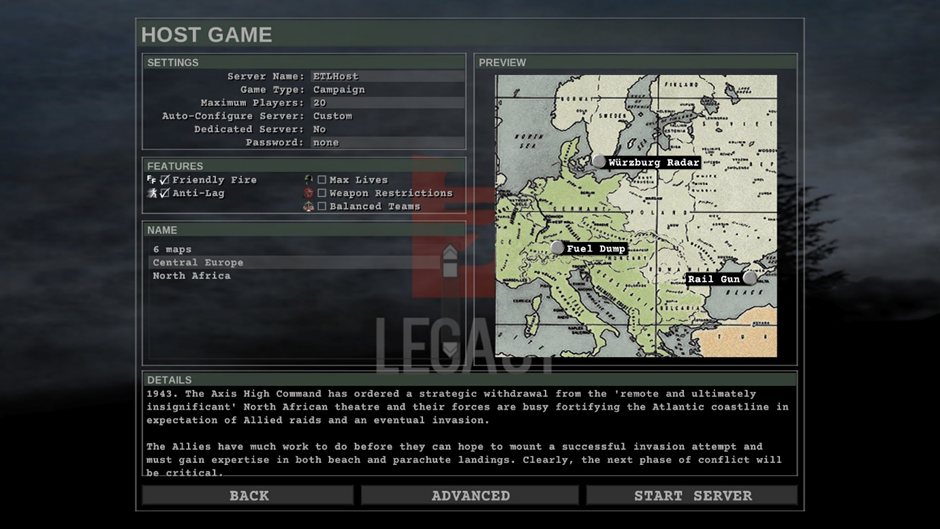
Setup your server as you want and then click on the START SERVER button.
In the game open the console with ~ button and type this command:
/omnibot_enable 1
Restart your server. For example change the map with referee menu. Type this command in console:
/bot addbot
This will add 1 bot on your server.
You can change difficulty level of bots with /bot difficulty command. (from 0 to 6)
Full bots command list [omni-bot.invisionzone.com]
This is all you need to know to get into Enemy Territory. I will update this guide with additional tips in the future.
 Previous Post
 Next Post